Passkeys on Windows PCs: Using Windows Hello Without Getting Stuck in PIN Problems

On Windows, the “passkey problem” is often a Windows Hello problem in disguise.
Passkeys are supposed to reduce the number of secrets you have to remember. But on a Windows PC, passkey sign-in is usually unlocked by Windows Hello, and Windows Hello is usually protected by a PIN (or biometrics backed by that PIN).
So when you see a “passkey” prompt and then hit a Windows Hello PIN error, it can feel like passkeys are broken. In reality, the passkey is often fine. It is the local Windows Hello unlock step that is failing.
Quick Answer
If passkey sign-in on Windows keeps failing with Windows Hello PIN errors, sign in using a fallback method (password, security key, or “use another device”), then repair Windows Hello first, and only then retry passkeys. In most cases, resetting or re-setting up your Windows Hello PIN in Settings fixes the loop. If you are on a work or school PC, do not guess: Hello and passkey policy can be managed by IT.
Table of Contents
Key Takeaways
- A Windows Hello PIN is not the same thing as a passkey. The PIN is a local unlock method that often gates passkey use.
- Many “incorrect PIN” errors are about the wrong PIN: Windows Hello PIN vs a security key PIN vs an app/provider prompt.
- Fix the Windows Hello PIN first, then test passkey sign-in again in the same browser you originally used.
- Do not delete your only passkey or remove your only sign-in method while you are troubleshooting. Confirm you can still sign in.
- If passkeys still fail after Hello works, the issue is often where the passkey is stored (Windows, phone, password manager, or a security key).
What’s Actually Happening When Windows Asks for a PIN
Most passkeys are built on the WebAuthn/FIDO2 standard. When a site says “Use a passkey,” your browser asks the operating system or a passkey provider (like a password manager) to find the right credential and approve the sign-in. The FIDO Alliance’s passkeys overview is a good plain-language reference for what passkeys are (and what they are not): Passkeys (FIDO Alliance).
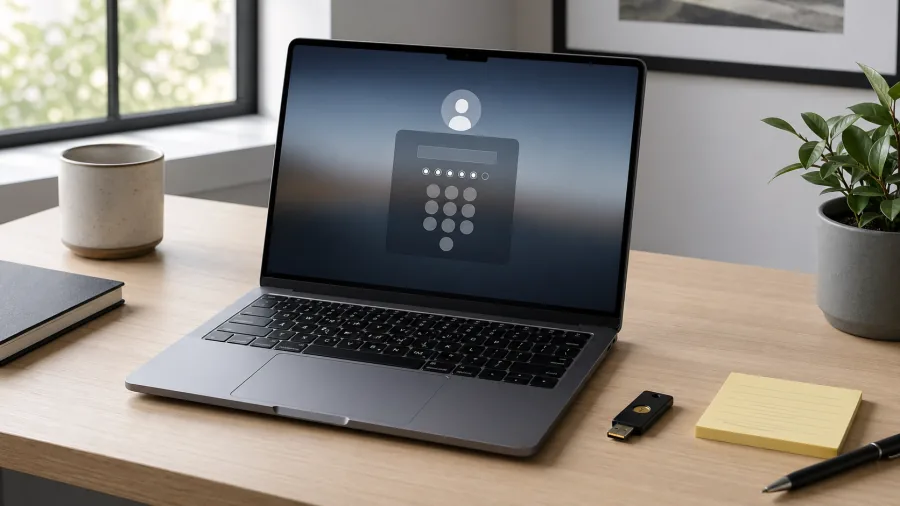
On Windows, that approval frequently routes through Windows Hello, which then asks for a biometric gesture (face/fingerprint) or a Windows Hello PIN. If Windows Hello cannot verify the PIN, the passkey flow cannot finish, even if the passkey itself is valid.
That is why people experience passkeys as “randomly broken” after:
- a Windows update or major upgrade
- changing a Microsoft account password
- switching between local account and Microsoft account sign-in
- work/school policy changes (domain, Entra ID, MDM)
- turning off Windows Hello or removing the PIN
In practice, many of the highest-ranking results for this query are support threads where the user is stuck in a Windows Hello prompt loop or cannot dismiss a passkey-related dialog. One example: a Microsoft Tech Community thread on Windows Hello passkey dialogs.
The Three “PINs” People Confuse in Passkey Flows
Before you reset anything, confirm which PIN the prompt is actually asking for.
- Windows Hello PIN: This is tied to your Windows account on that PC. It unlocks local Windows Hello operations.
- Security key PIN: If you use a FIDO2 security key (like a YubiKey), that key can have its own PIN. This is separate from Windows Hello.
- Provider prompt: Some passkey providers display an “unlock” prompt that looks like a system dialog but is really your browser or password manager asking to unlock stored passkeys.
A quick tell: if the prompt mentions “security key,” “USB,” or shows a key brand, it is probably the security key PIN. If it mentions Windows Hello, it is probably the Windows Hello PIN.
Fast Checks Before You Reset Windows Hello
These quick checks prevent the most common “I fixed the wrong thing” loops.
- Try the same sign-in in a different browser. If it works in one browser but not another, the passkey may be stored in a specific browser profile or provider.
- Look for a “Use a different method” option. Many sites let you switch to password, email code, or “use another device” for passkeys.
- Check whether you’re on a managed device. Work/school PCs can enforce Windows Hello policy. If this is a company laptop, ask IT before you remove or re-enroll Hello.
- Make sure date/time are correct. A wrong system clock can break sign-in flows and certificates in weird ways.
- Confirm you still have at least one fallback. Password + recovery email/phone, an authenticator app, or a second passkey on another device.
Fix Windows Hello PIN Problems (Safe Order)
The safest approach is to keep access, repair Hello, then test passkeys. The exact buttons vary a little by Windows version and account type, but the sequence is consistent.

- Sign in without the passkey, if you can. On the website or app you are trying to access, choose password, email, authenticator, or “use another device.” The goal is to avoid getting locked out while you fix Windows Hello.
- Open Windows sign-in options. Go to Settings > Accounts > Sign-in options.
- Find the Windows Hello PIN setting. Look for PIN (Windows Hello) and choose the option to change the PIN or reset it (often labeled “I forgot my PIN”).
- Re-verify your identity. Windows may ask for your Microsoft account password, your local account password, or a work/school credential.
- Create a new PIN and confirm Hello works. After you set a new PIN, lock your PC and confirm you can unlock it using Hello (PIN or biometrics).
- Retry the passkey sign-in. Go back to the same site in the same browser and try the passkey flow again.
If Windows indicates your PIN is unavailable or the reset flow does not complete, use Microsoft’s passkey and Windows Hello troubleshooting guidance as your next reference point: Troubleshoot signing in with a passkey (Microsoft Support).
If Windows Hello Works but Passkeys Still Fail
If your Windows Hello PIN is working again but the passkey sign-in still fails, the next question is: where is the passkey stored? The fix depends on the storage location.
| Where the passkey is stored | What you typically see on Windows | What to do when PIN issues happen |
|---|---|---|
| In Windows (Windows Hello) | A Windows Security / Windows Hello prompt appears on the PC | Repair Windows Hello PIN first, then retry the passkey flow |
| On your phone (iOS/Android) | A “use another device” or QR code option appears | Use the phone’s biometrics to approve; keep your phone unlocked and nearby |
| In a password manager | The browser asks to unlock a passkey, sometimes still using Windows Hello | Confirm which provider is active, and test in the same browser profile where the passkey was created |
| On a security key (FIDO2) | The site asks you to insert/tap a key and maybe enter a key PIN | Use the security key’s PIN (not your Windows Hello PIN). If the key PIN is locked, reset via the key’s management tools |
This is also why some people feel like Windows “randomly demands a PIN” for passkeys. The browser and provider ecosystem is still uneven. A passkey created in one place (a password manager, a phone, Windows Hello) does not always behave the same way in another.
How to Avoid Getting Locked Out While You Move to Passkeys
Passkeys are meant to be safer and simpler, but the transition period can be messy. These are the habits that prevent a small Windows Hello issue from becoming a full account lockout.
- Keep at least two sign-in methods per important account. For example: passkey + password, or passkey + authenticator, or two passkeys on two devices.
- Add a second passkey before you remove passwords. If the site allows it, register a phone passkey and a Windows passkey (or a security key) before you disable other sign-in methods.
- Save recovery codes somewhere offline. If an account offers recovery codes, treat them like spare keys.
- Do not “clean up” sign-in options during a crisis. Avoid removing the Windows Hello PIN, deleting passkeys, or turning off biometrics until you can reliably sign in again.
- On shared or managed PCs, ask before you change Hello. Enterprise policy can make Hello enrollment and resets behave differently.
For more practical consumer-tech guides, browse IdarB’s Computers & Tech section and the broader Technology section.
What to Watch Out For
- Assuming the “PIN” is always Windows Hello. Security keys and some providers have separate PINs.
- Resetting things in the wrong order. Regain access first, then repair Windows Hello, then retest passkeys.
- Mixing browsers and profiles. A passkey created in one profile can be invisible in another.
- Work/school devices. If your device is managed, policy changes can trigger prompts and lockouts you cannot fix locally.
- Deleting your only passkey. Always confirm a fallback works before removing anything.
Frequently Asked Questions
Is a Windows Hello PIN the same as a passkey?
No. A passkey is the credential used to sign in to an account (usually via WebAuthn/FIDO2). A Windows Hello PIN is a local unlock method on your PC that often gates passkey use on Windows.
Why does Windows Hello appear when I try to use a passkey?
Because Windows Hello is commonly used to approve passkey sign-ins on Windows. The browser asks Windows for a passkey approval, and Windows uses Hello (PIN/biometrics) to confirm it is really you at the device.
What if I can’t reset my Windows Hello PIN?
Start by using a fallback sign-in method for the account you are trying to access (password, authenticator, or “use another device”). Then troubleshoot Windows Hello sign-in options in Windows settings. On a managed work/school PC, contact IT since policy can block or change the reset behavior.
Do passkeys work on Windows 10, or do I need Windows 11?
Passkey support can depend on your Windows version, browser, and account/provider setup. Windows 11 generally has more modern passkey/Windows Hello behavior, but many passkey flows can still work on updated Windows 10 systems depending on the site and browser.
Should I delete and recreate my passkey if Windows Hello PIN keeps failing?
Usually, no. Fix Windows Hello first and retest. Only delete and recreate a passkey after you confirm you have a working fallback sign-in method and you have ruled out a simple Windows Hello PIN issue.
The Bottom Line
If passkeys on your Windows PC keep getting stuck on Windows Hello PIN errors, treat it as a local Windows Hello recovery problem first, not a “passkeys are broken” problem. Regain access using a fallback, repair the Windows Hello PIN, and then test passkey sign-in again.